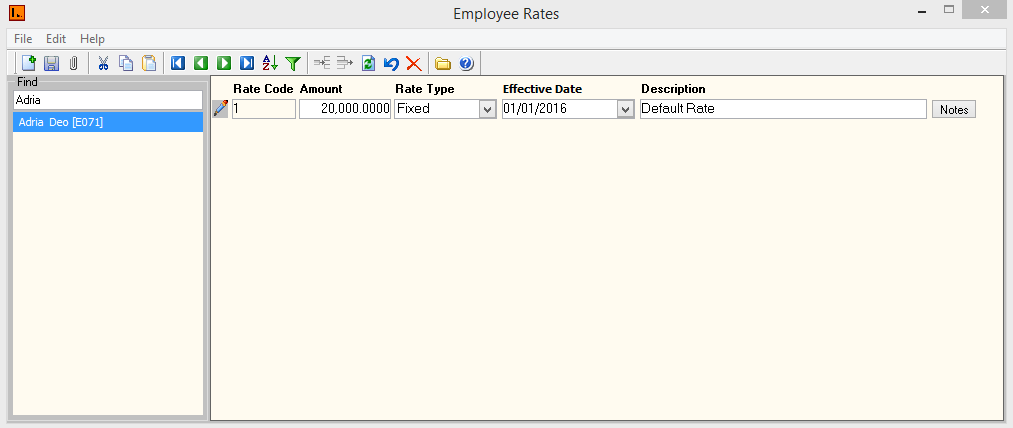
Figure 1: Employee Rates Screen
This Menu has Employee Rate information.
Figure
1: Employee Rates Screen
Employee Rate contains the following types of information:
| Fields | Description |
| Employee Code | Select employee code |
| Rate Code | Set of numeric values to uniquely identify Rate Code. |
| Amount |
This is the amount that an employee will be paid. The Rate
amount is dependent on Category type. For example:
|
| Rate Type | This also depends on the Category type selected for the employee. |
| Effective Date | The start date from which the particular pay rate would be used. |
| Description | This field can be amended to enter a description applicable to the rate defined. Historical rates are stored in this screen and the user can put in a description to say what the different rates were. |
 Steps
Steps
Select close icon or Alt + F4 shortcut key to close the menu.